Inherited Styles
Description
Inherited styles are web themes derived from an existing style. Styles can inherit from system styles shipped with Alpha Anywhere or custom user-defined styles.
Discussion
Inherited Styles are themes that modify an existing theme, such as a system style (e.g. AndroidDark or Alpha). Modifications are stored in a separate file that are applied to the base theme. Inherited styles are similar to Style Tweaks in that they overwrite an existing style. However, unlike Style Tweaks which are saved in the project workspace, Inherited Styles are saved as a local or global style which can be referenced in other projects or workspaces.
Assigning an Inherited Style to a Component
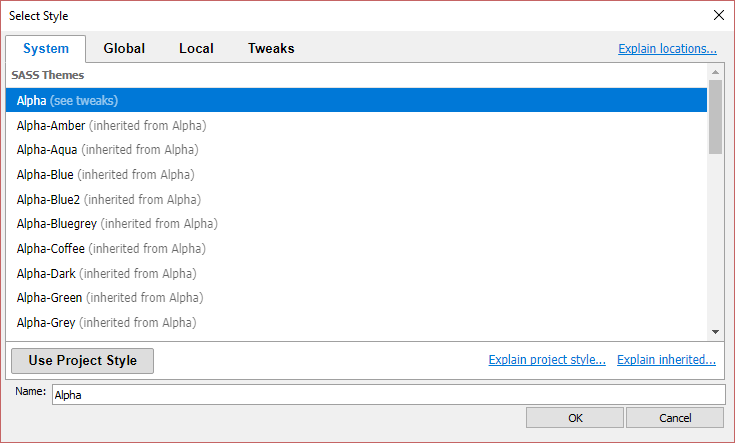
Inherited styles are assigned to a component the same way Sass styles are assigned. Select the style from the Style name dialog or, if you are using <ProjectStyle> for your components, set the style in the Project Properties. If a style is an Inherited style, it will be indicated in the style picker.
Creating an Inherited Style
Inherited styles are created from within the Web Theme Builder. In order to create a new Inherited style, you must first open an existing local or global style or Style Tweak in the Web Theme Builder for editing. If you do not have an existing style or Style Tweak to open, you can copy a system style (give it a name such as "tempstyle") to launch the Web Theme Builder. The temporary theme can be deleted later.
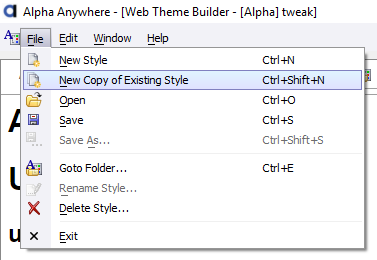
In the Web Theme Builder, select New Copy of Existing Style from the File menu.
Next, select the theme from which the new theme inherits. You can only create Inherited Styles that modify a SASS theme. Inherited Styles cannot inherit from CSS themes or other Inherited themes. If you select a theme that is not supported, the Create Inherited button will be disabled.
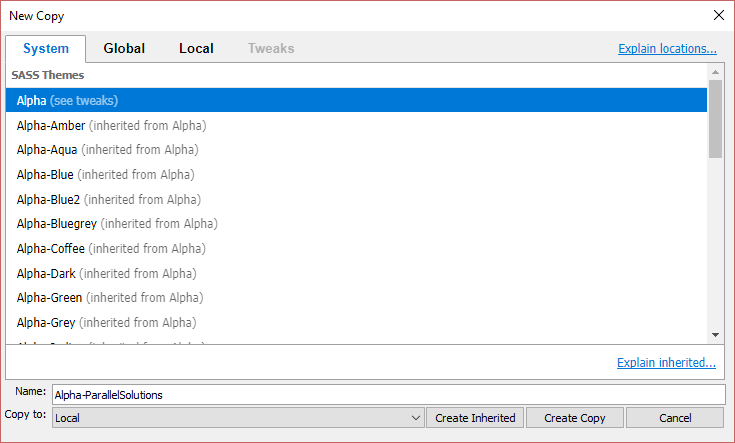
After selecting the theme, give your new Inherited Theme a name, select where the Style should be stored ("Local" or "Global" -- see Stylesheet Builder for more information), and click the Create Inherited button.

Modifying an Inherited Style
Inherited styles, unlike full Sass styles, cannot be modified using Style Tweaks. They can only be modified from within the Web Theme Builder. If you wish to change one of the Inherited styles shipped with Alpha Anywhere, you must first create a local or global copy of the system style.
Since Inherited styles are based off of a system style, they can be thought of as "Named Style Tweaks". Copying an Inherited style to create a local or global style does not come with any of the drawbacks typically seen when copying a system style. This is because they are "tweaks" to the existing styles in Alpha Anywhere.
To modify an Inherited style, open the style in the Web Theme Builder. If prompted, create a local or global copy of the Inherited style. Adjustments to any exposed Sass variables in the system style or Inherited style will be available on the Adjust tab in the Web Theme Builder. The Code tab will contain any additional tweaks added to the Inherited style -- including sub-themes. Add any additional changes you would like to make on the Code tab.
Built-in Inherited Styles
The following Inherited Styles are built-in to Alpha Anywhere.
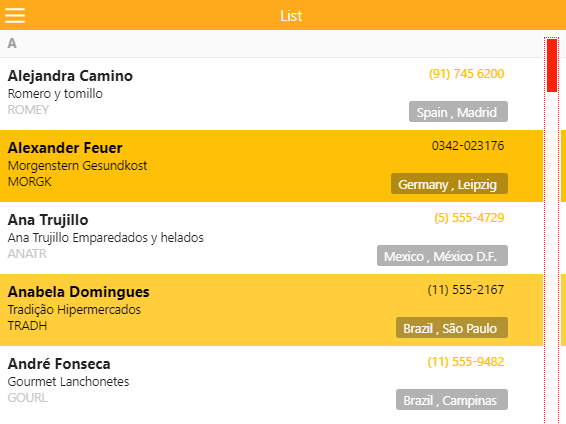
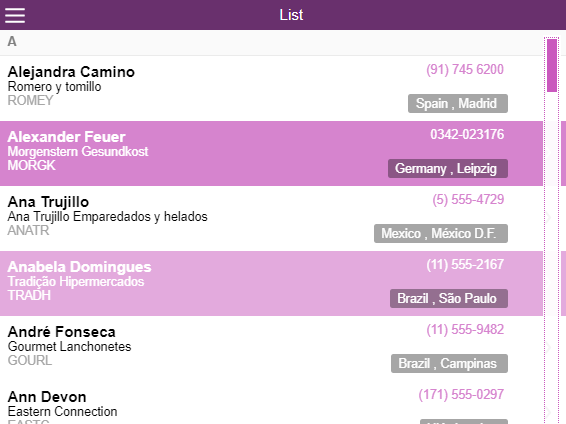
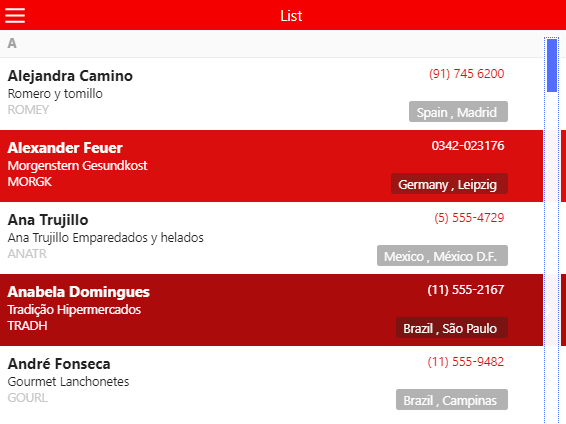
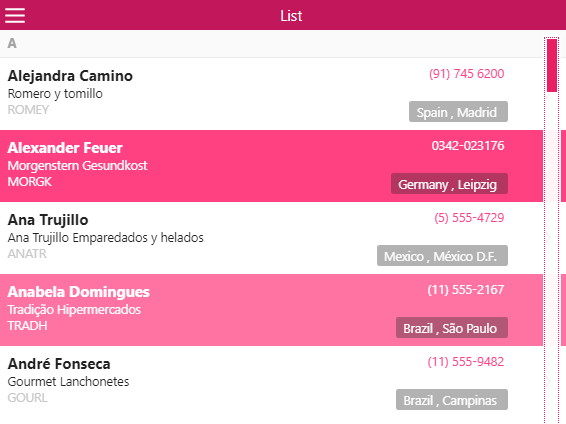
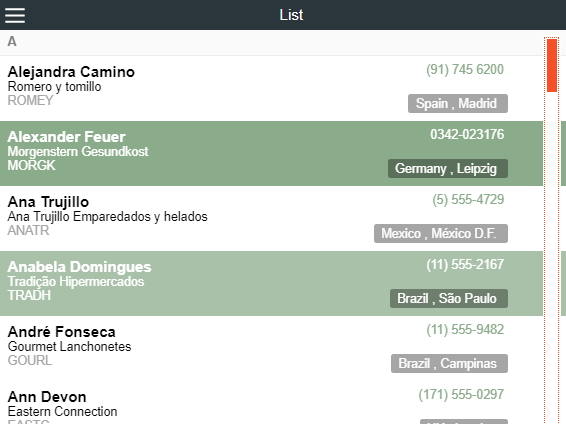
The images below do not include all controls.
Alpha-Amber
Alpha-Aqua
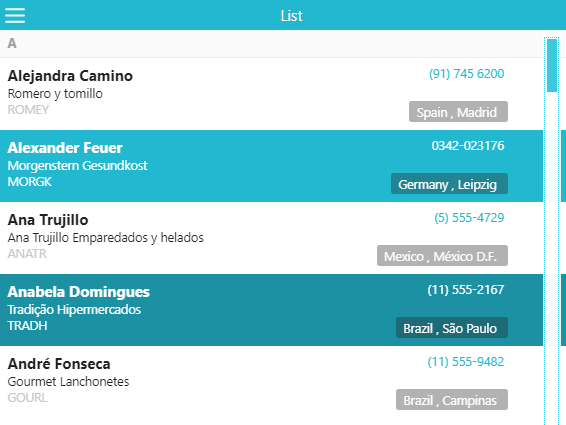
Alpha-Blue
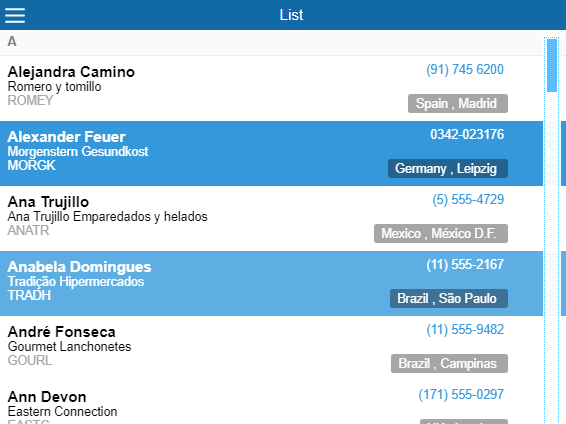
Alpha-Blue2
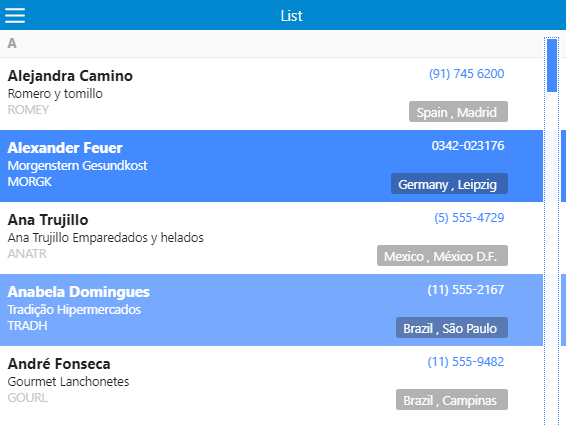
Alpha-Bluegrey
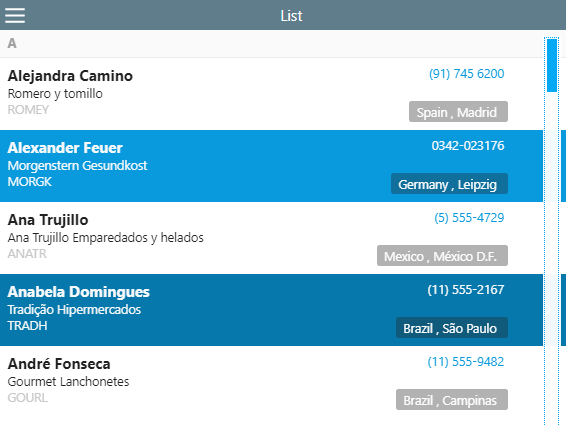
Alpha-Coffee
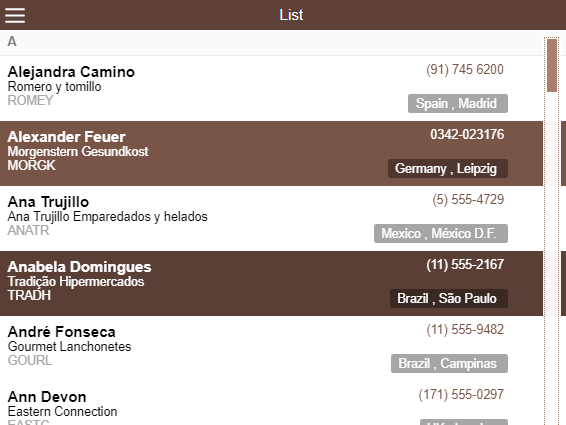
Alpha-Dark
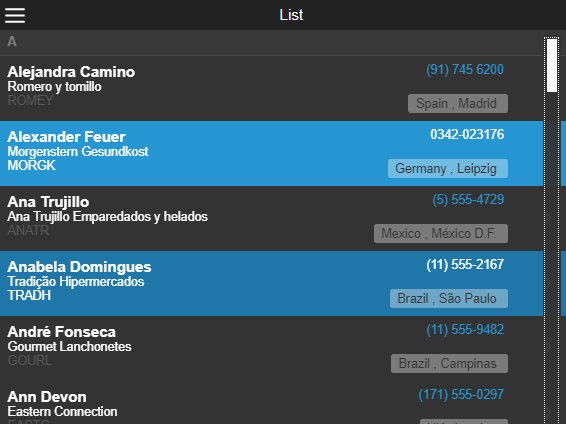
Alpha-Dark-Green
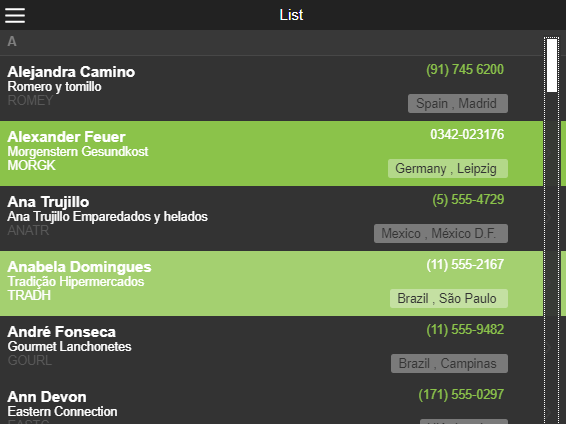
Alpha-Dark-Rose
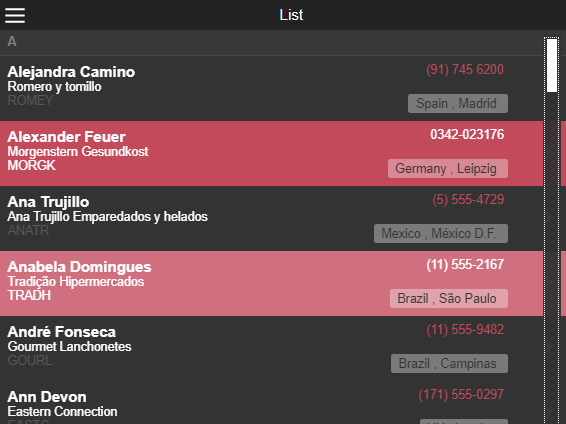
Alpha-Green

Alpha-Grey
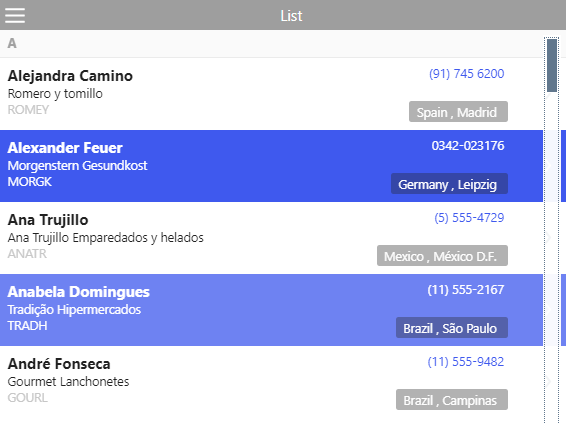
Alpha-Indigo
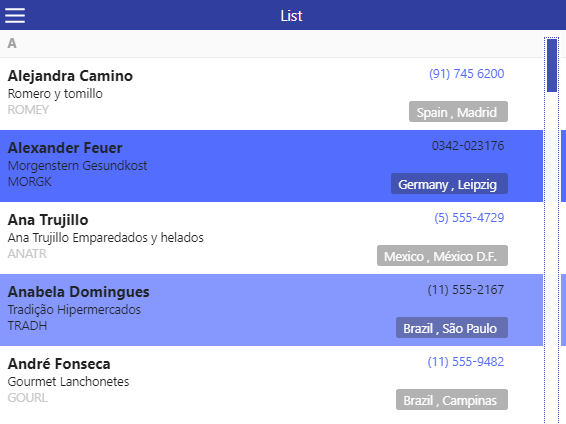
Alpha-Magenta
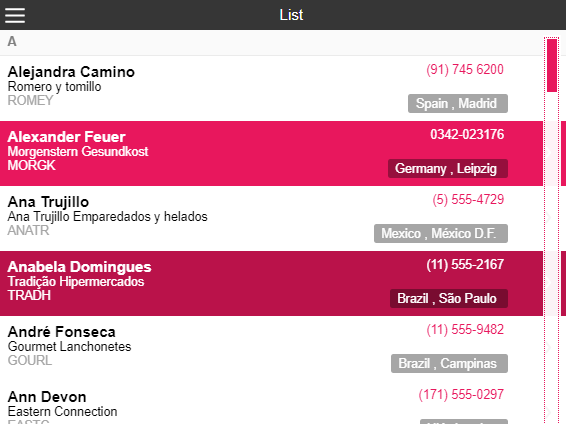
Alpha-Orange
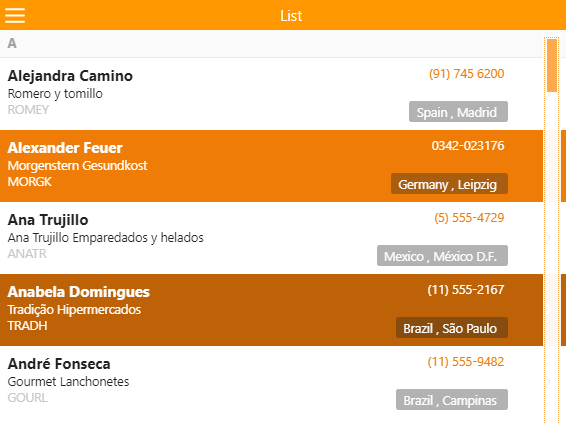
Alpha-Purple
Alpha-Red
Alpha-Rose
Alpha-Slate
Alpha-Teal